Layout and menu
Navigation through the application takes place using buttons in the menu. After logging in, the layout is always the same: there is a toolbar at the top with buttons. On larger screens, buttons are available at the top of the toolbar. These buttons disappear for the most part when the application is viewed on a phone. On the left side of the logo there is a hamburger icon. If you click it, the menu buttons appear in the side menu.
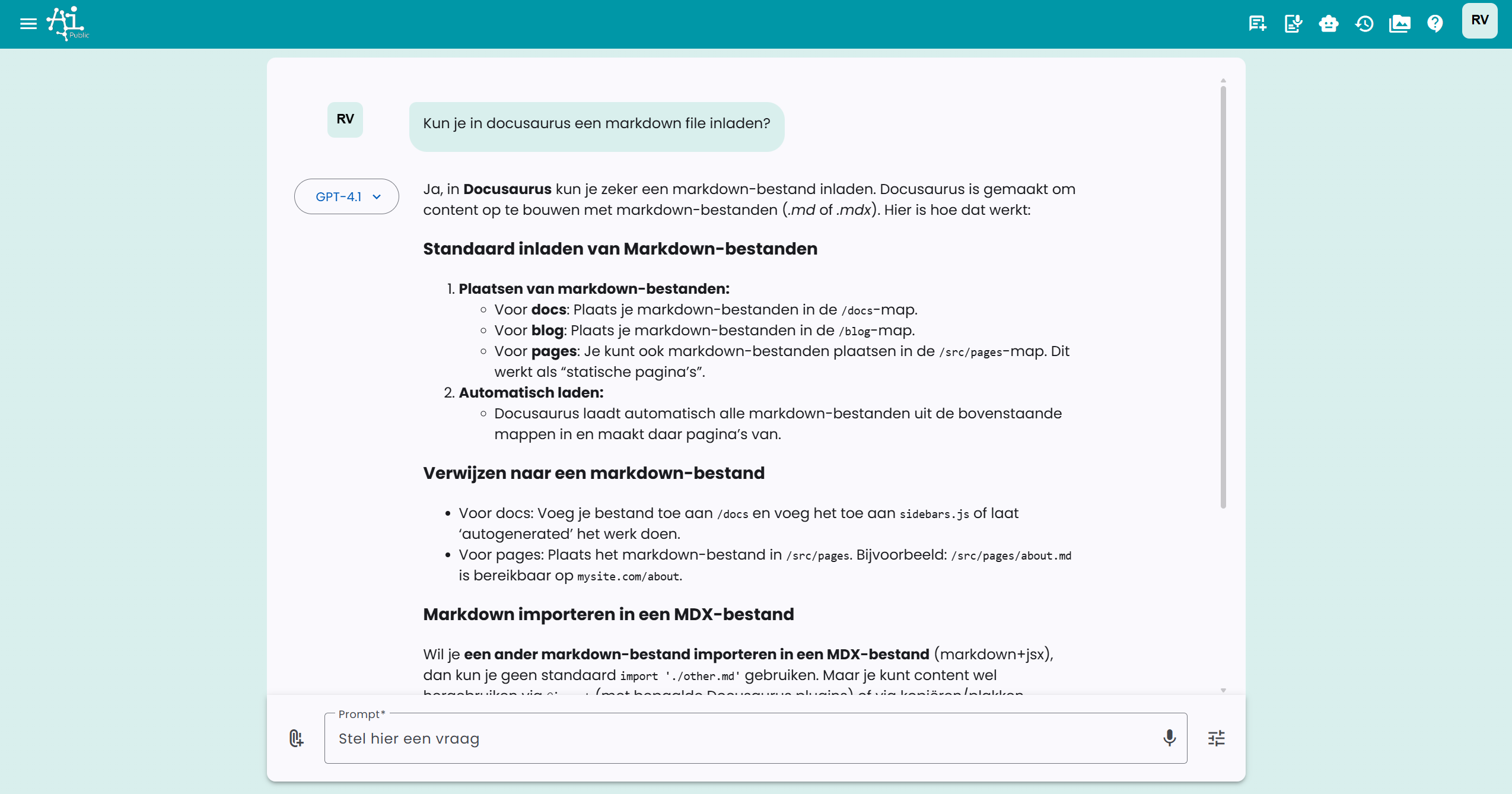
There are 4 different menus available on the top menu bar and in the side menu on the left:
- Main menu
- Support menu
- Profile menu
- Settings menu
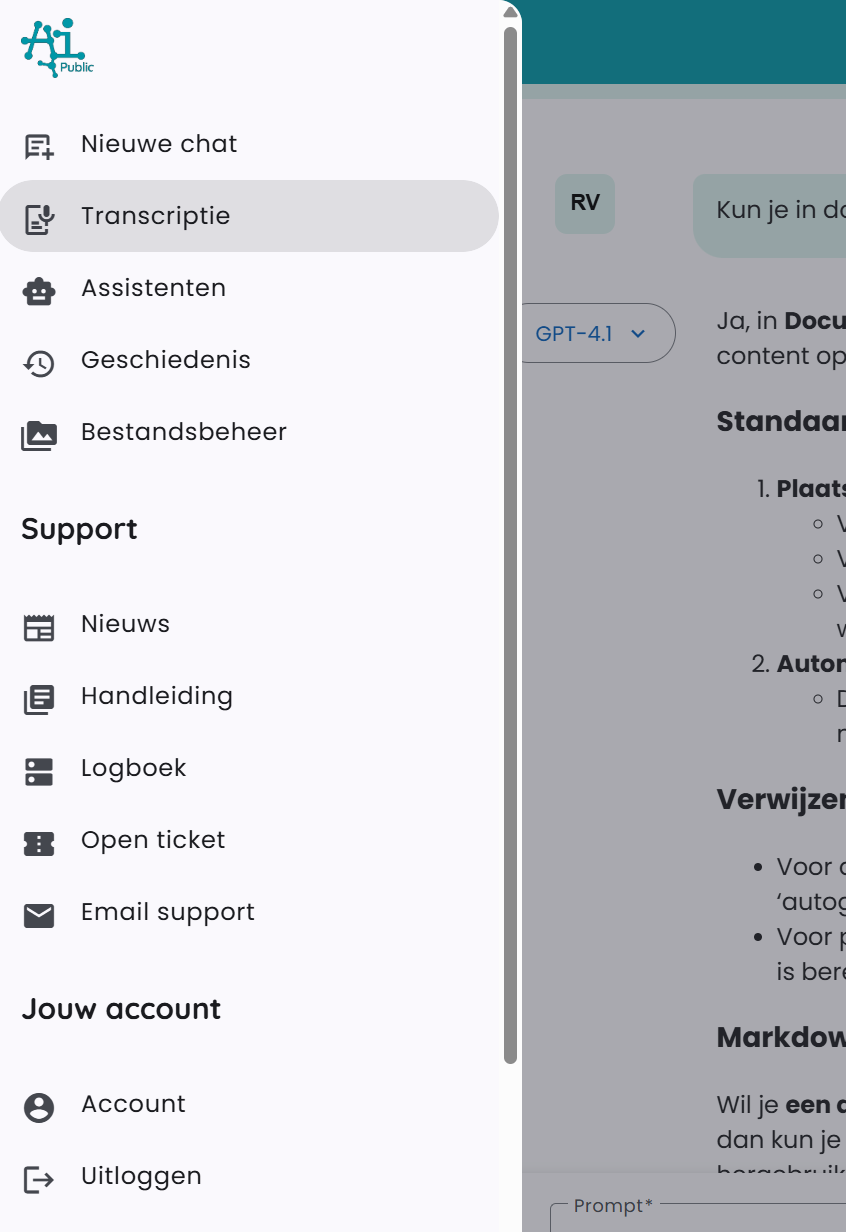
Main menu
The following options are available in the main menu:
- New chat: returns you to the start screen with a blank chat.
- Assistants: view available assistants. Employees with the correct permissions can also create and share assistants.
- History: view the history of your chats.
- File management: view all uploaded documents and generated images.
Depending on your account and the configuration of your company environment, the following may be added:
- Admin: for administrators of the company environment, with access to management features.
The main menu has separate buttons in the toolbar for quick access.
Support menu
? → Support (/auth/support)
The Support page has three cards:
- How can we help you?: open the chat. It can help you with information from the manual.
- Known issues: ongoing incidents. You do not need to report a known issue again. Under Previous incidents are resolved and closed incidents.
- Report an issue: describe your question or problem. You will receive a confirmation by email with a reference number.
Profile menu
The profile menu consists of:
- Profile: here you can find account details. Depending on your organization settings, you may also be able to switch between different departments or project environments here.
- Log out: log out when you are done working.
Settings menu
The settings menu mainly consists of the Preferences page. Here you can adjust personal settings. Depending on the configuration of your company environment, extra options may be available here, such as selecting specific project groups or teams to follow.
The profile menu and settings menu are both available in the toolbar on the right under the initials of the logged-in user. This is a dropdown menu.